Room features and how to use the in-room tablet and controls
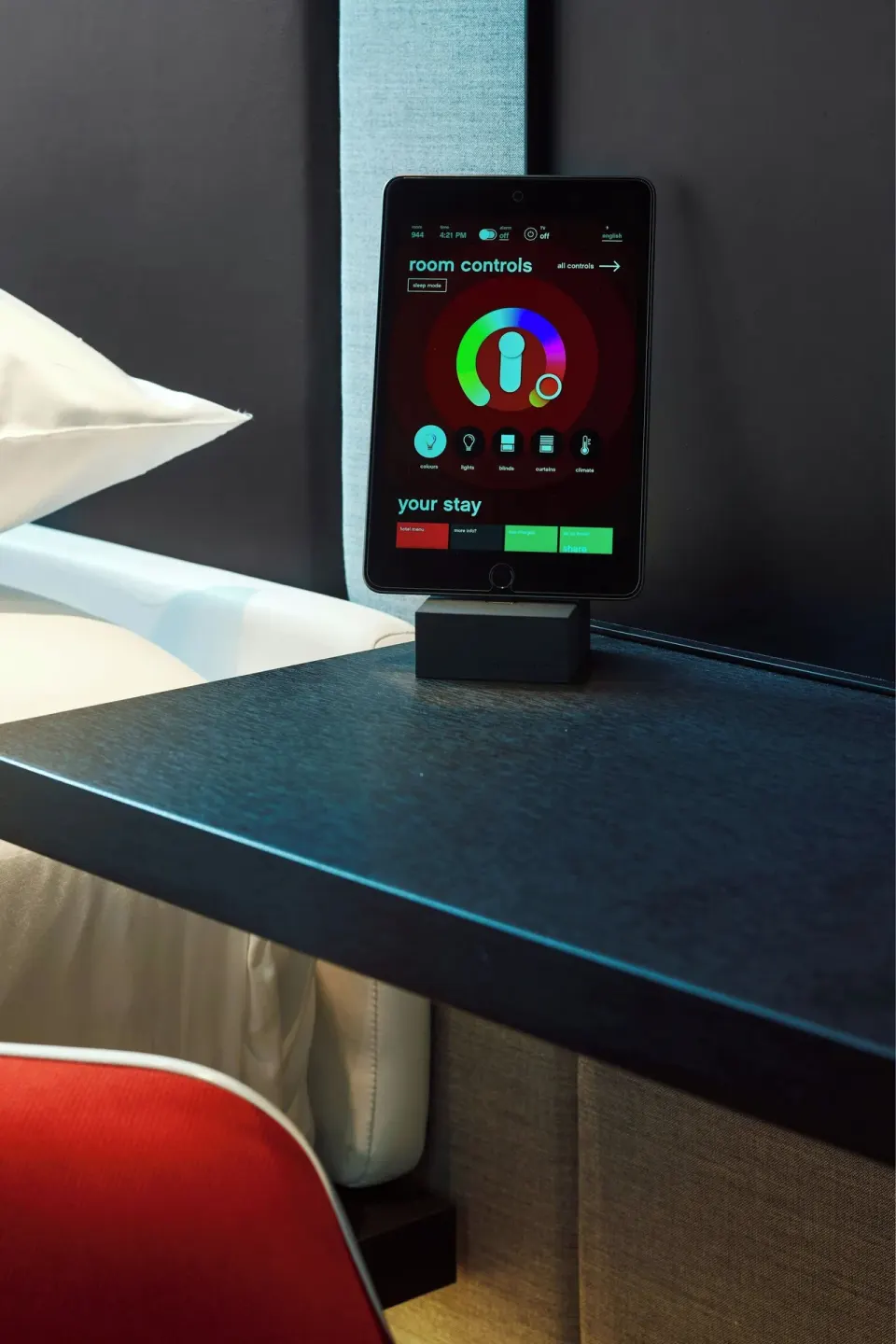
Every guest room at citizenM Los Angeles Downtown has an in-room tablet and bedside controls that manage lighting, climate, curtains, TV casting and do-not-disturb. Tap the tablet on the bedside shelf (or use the wall-mounted control) to access presets, change temperature and stream entertainment to the wall-mounted TV in Room, Room (High Floor) and Premium Room types.
In this guide
Where to find the tablet and main controls
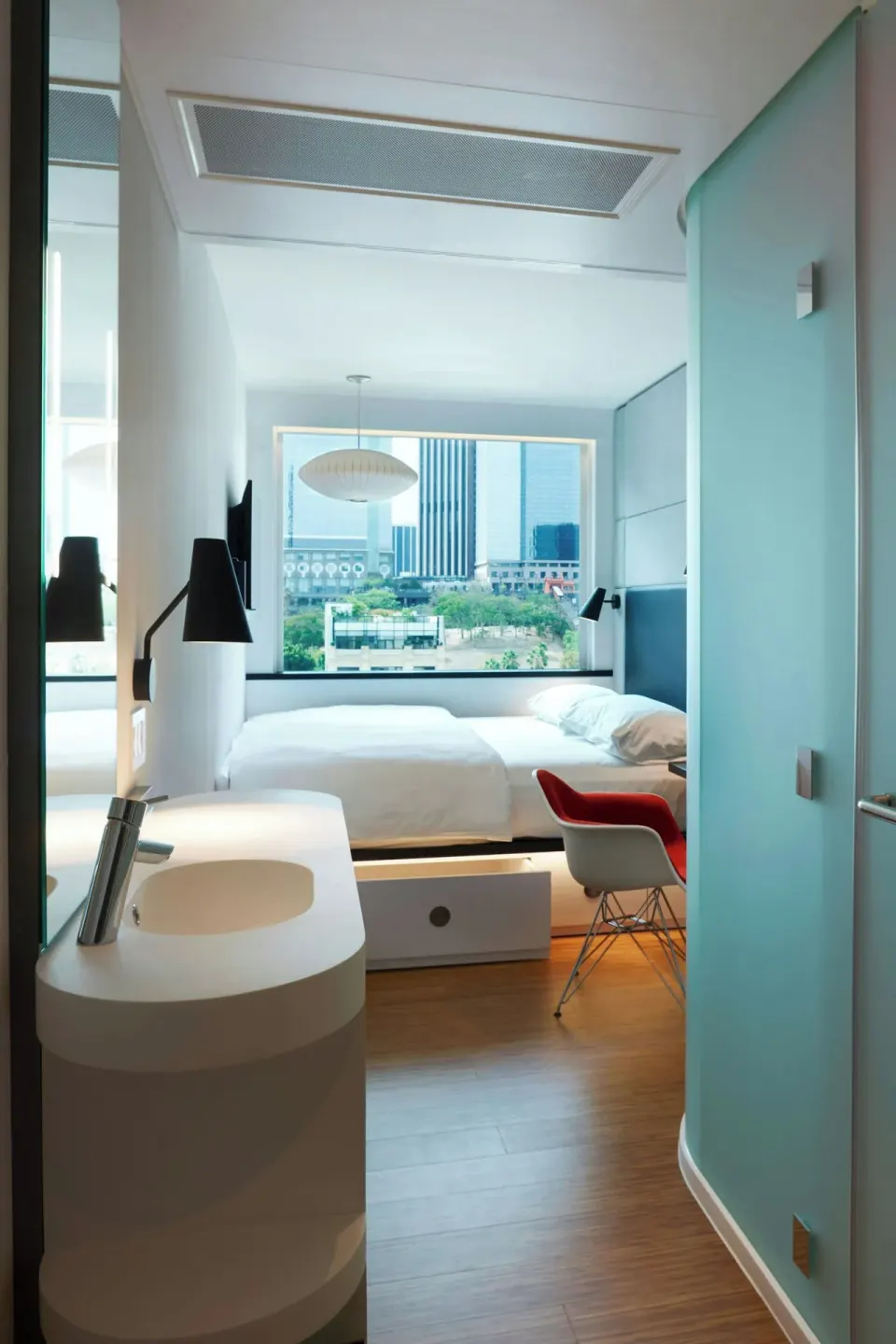
The bedside tablet sits on a small shelf beside the XL king-size bed in every room type (Room, Room (High Floor), Premium Room). It’s the primary interface for room functions.
There may also be a wall-mounted control or touchscreen near the bed or desk that duplicates common options like lights and TV. If you don’t see either, contact the front desk via the app or lobby kiosks.
- Tablet location: bedside shelf (pictured).
- Supplemental controls: wall-mounted panel or bedside lamp switches.
- If locked out after hours: use your mobile key or call the front desk (staff available 24/7).
| Room element | Where to look |
|---|---|
| In-room tablet | Bedside shelf |
| Light & mood presets | Tablet; sometimes wall control |
| TV and casting | Tablet and TV unit/remote |
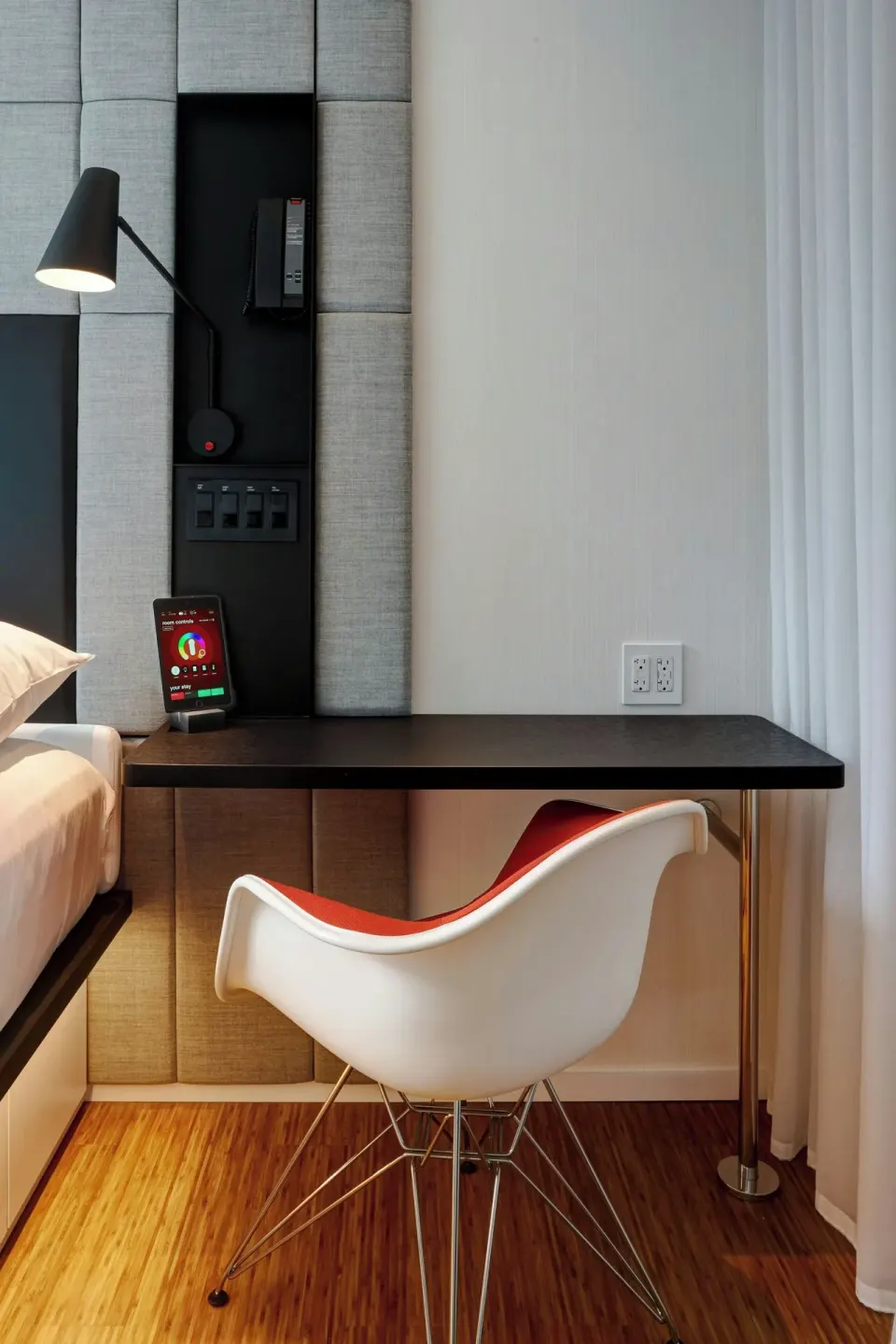
Powering on and basic navigation
Wake the tablet by tapping the screen or pressing the power/top button if it’s asleep. The home screen shows tiles for Lights, Climate, Curtains, TV and Housekeeping/Do Not Disturb.
Tap a tile to open its controls; back arrows return you to the main menu. The tablet is touchscreen only — there’s no separate keyboard — and it controls the room systems while you’re checked in.
- Tap screen to wake.
- Use on-screen tiles: Lights • Climate • Curtains • TV • Services.
- Press back arrow or Home to return to main menu.
| Tile | Function |
|---|---|
| Lights | Switch presets and adjust brightness |
| Climate | Set temperature and fan |
| TV | Switch inputs and start casting |
Lighting, mood presets and curtains
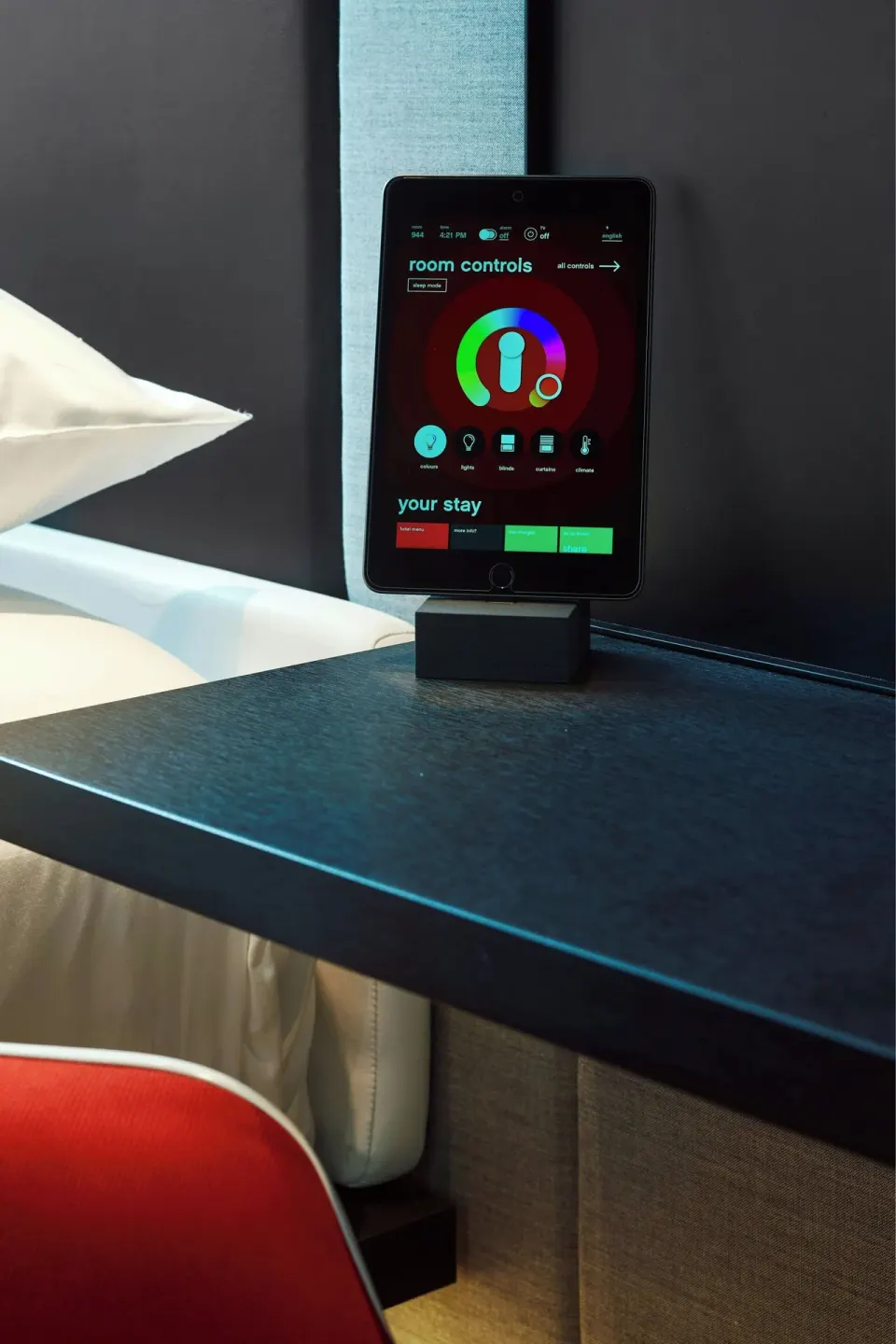
CitizenM rooms use preset light scenes (for example: Relax, Read, Work) you can pick from the tablet. Choosing a preset adjusts bedside, ceiling and accent lights together.
You can also fine-tune brightness levels or turn individual lamps on/off. Curtains are motorized in many rooms and open/close from their own tile on the tablet; use the Curtain control to raise, lower or stop midway.
- Select a preset for quick whole-room changes.
- Use sliders to dim or increase individual lights.
- Curtains: Open • Close • Stop — allow a few seconds to move fully.
| Action | How to do it |
|---|---|
| Pick a mood | Lights tile → choose preset |
| Dim bedside lamp | Lights tile → select bedside lamp → slider |
| Close curtains | Curtains tile → Close |
Climate control and fan settings
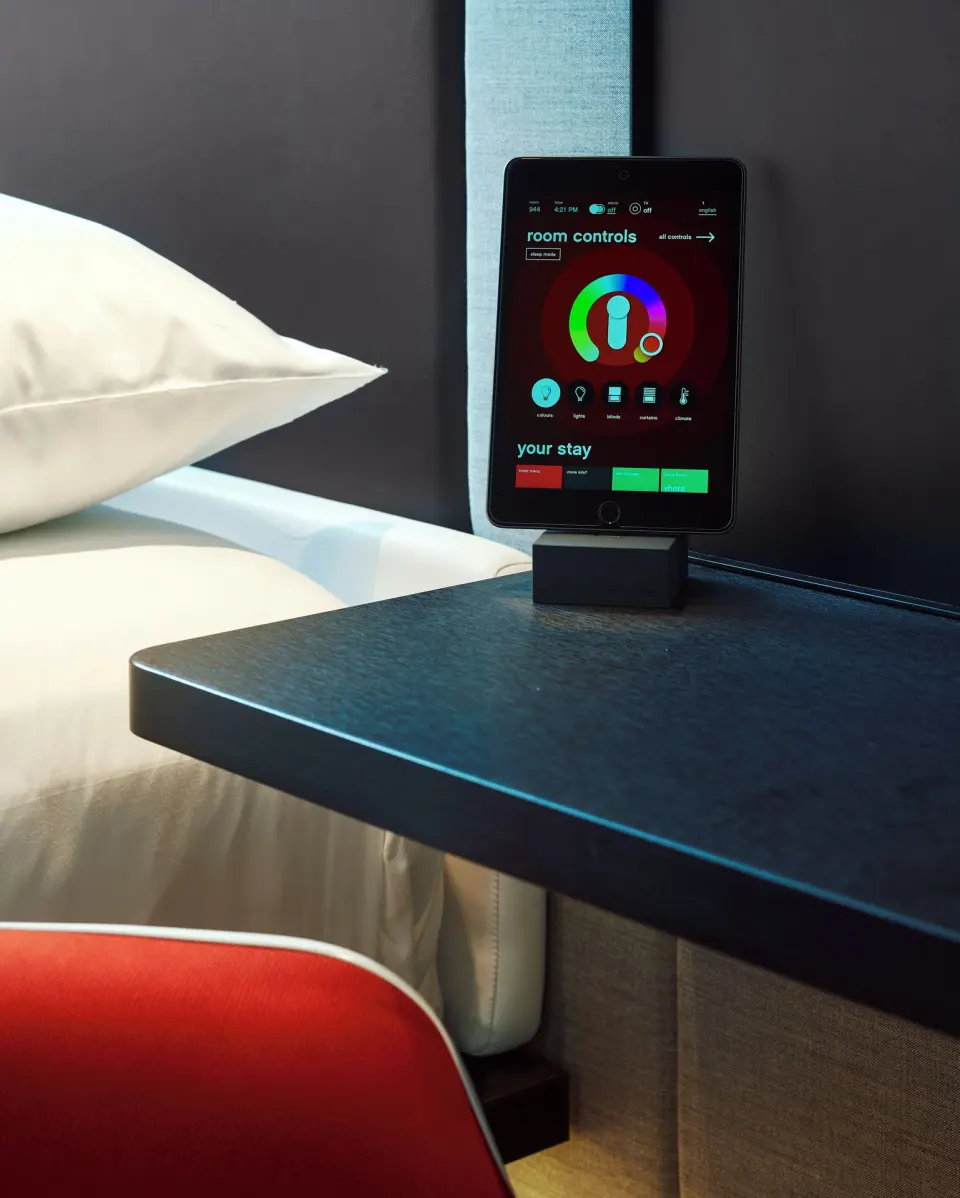
Temperature and fan are set from the Climate tile on the tablet. The tablet sends commands to the in-room HVAC; changes typically take a few minutes to take effect.
If you prefer using built-in buttons, some rooms also have a small thermostat panel on the wall. If the room doesn’t respond within a few minutes, contact reception for assistance.
- Set desired temperature with up/down controls on the Climate tile.
- Turn fan on/off or change fan speed if available.
- Expect a short delay while the HVAC adjusts to your setting.
| Problem | Quick fix |
|---|---|
| Room still warm after change | Wait 5–10 minutes; then call front desk |
| No temperature control visible | Check wall panel or contact reception |
| Fan stays on | Use fan control on Climate tile or ask staff |
TV, streaming and casting from your device
The tablet can control the wall-mounted TV and often includes a Cast or Connect function (Apple TV/Chromecast/Smart TV depending on the room). Use the TV tile to switch inputs or start a cast session.
To cast from your phone or tablet, open the streaming app, select the cast icon and choose the in-room TV name displayed on the tablet. If you prefer HDMI, the meeting-room-style AV options (Clickshare/HDMI) are available in societyM meeting rooms, not guest rooms.
- Open TV tile to change input or select Cast/Screen Mirror.
- Find the room TV name in your phone’s cast list and connect.
- If casting fails, restart the tablet or the TV via the tablet’s TV tile, or call the front desk for help.
| Casting step | What to do |
|---|---|
| Open TV tile | Check TV availability and name |
| Start cast from app | Choose the room TV name |
| Disconnect | Stop casting in the app or turn TV off from tablet |
Do Not Disturb, housekeeping and guest services
Use the Services or Housekeeping tile on the tablet to set Do Not Disturb or request room cleaning. The hotel supports self-service check-in/out but has staff on hand 24/7 if you need help.
If you need extra towels, toiletries, or have an accessibility request, place the request through the tablet or call the front desk using the phone provided in your room.
- Do Not Disturb: toggle from tablet — affects housekeeping notifications.
- Housekeeping: request full clean or 'quick refresh' via Services tile.
- For late arrivals/after-hours access issues: follow instructions sent by the hotel or call the front desk.
| Service | How to request |
|---|---|
| Extra towels/toiletries | Services tile → Request items |
| Do Not Disturb | Services tile → DND toggle |
| Technical issue with tablet | Call front desk or use lobby kiosks |